
Product Photography With a Phone: 7 Tips for Small Shops
How to take great product photos with your phone, no camera needed: window light, a plain backdrop, the right angles, light editing and web-ready files.
Photos are the first thing shoppers look at when buying online. The good news: product photography with a phone can look great without an expensive camera, as long as you get a few basics right about light, background and angles. This guide sums up 7 easy tips for clothing boutiques, florists, bakeries, handmade sellers and beauty shops.
Quick summary, 7 tips for product photography with a phone:
- Use window light and turn off the flash
- Choose a plain, tidy background
- Hold steady, clean the lens, don’t zoom
- Shoot every angle that matters
- Add lifestyle shots
- Edit lightly and consistently
- Name and compress photos before uploading
1. Use window light and turn off the flash
Light makes or breaks a photo. The best light is free: daylight from a window.
- Place the product next to a window, with light coming from the side.
- Avoid harsh direct sun; if it’s strong, soften it with a thin curtain or tracing paper.
- Turn off the flash: it creates harsh shadows, wrong colours and glare on shiny surfaces.
- Use a piece of white card opposite the window to bounce light into the darker side.
Shoot at the same time of day so colours stay consistent across products.
2. Choose a plain, tidy background
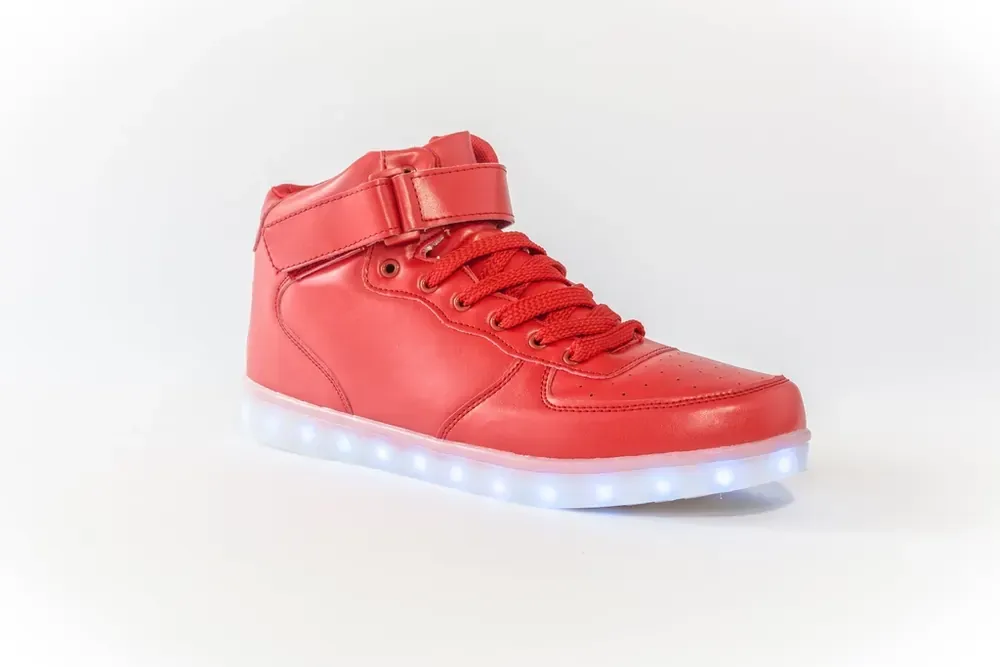 A plain white background makes colours pop and keeps your product list neat and even. Photo: rawpixel (CC0).
A busy background makes it hard to see what you’re selling. For the main photo, simpler is better:
- A large sheet of white paper or card curved from the wall down to the table, so there’s no visible corner.
- Wood, linen or stone for handmade goods, food and flowers, if it suits your style.
- Clear away clutter: cables, boxes, hands.
- Use the same background for a whole collection so your website looks consistent.
3. Hold steady, clean the lens, don’t zoom
Blurry photos usually come from shaky hands or a dirty lens, not a bad phone:
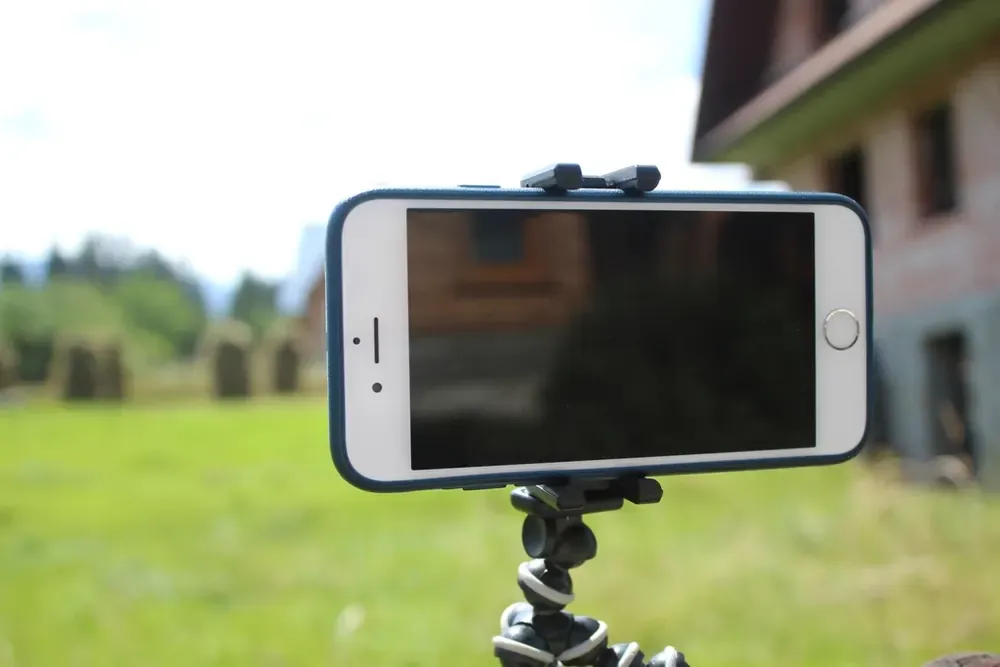 A cheap mini tripod keeps the phone still and at the same height, so every photo has the same angle. Photo: rawpixel (CC0).
- Wipe the lens with a soft cloth first; fingerprints cause blur and haze.
- Use a mini tripod, or lean the phone on a stack of books, with a 2–3 second timer.
- Don’t use digital zoom; to make the product bigger, move the phone closer.
- Tap the product on screen to focus, and slide the exposure if it’s too dark or bright.
4. Shoot every angle that matters
Shoppers can’t hold the product, so your photos have to do it for them:
- A straight-on shot as the main image in your list.
- Back and side shots, or a 45-degree angle.
- Detail shots: stitching, fabric texture, crumb, petals, a bottle cap.
- A size reference: next to a familiar object or worn on the body (no face needed).
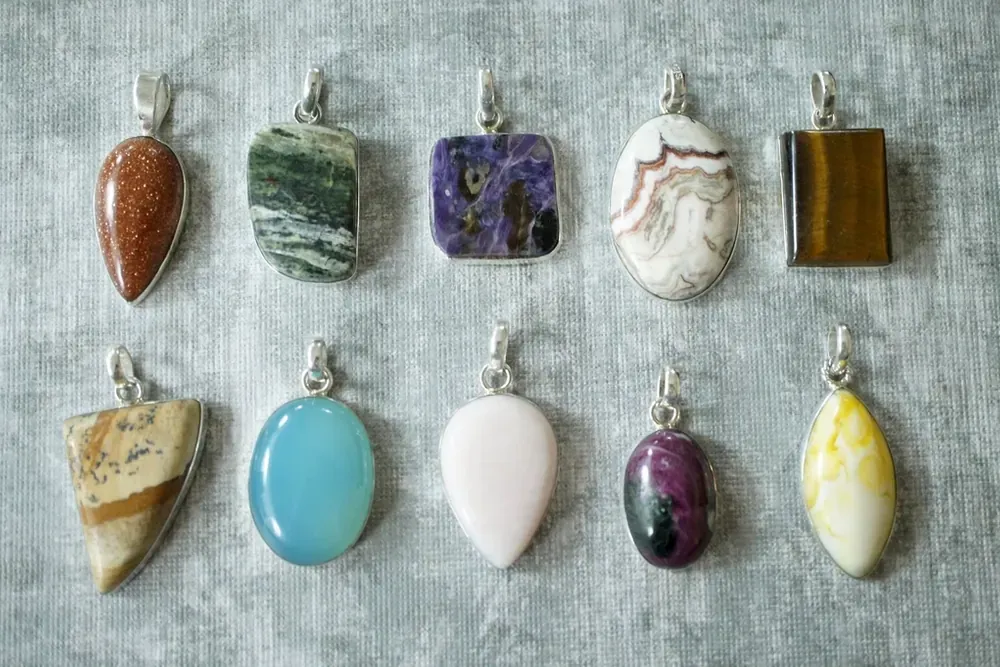 Shooting from above (flat lay) with items lined up lets shoppers compare colours and styles in one image. Photo: rawpixel (CC0).
For products that come in several colours, shoot each colour from the same angle on the same background so shoppers can compare accurately.
5. Add lifestyle shots
 Lifestyle shots tell more of the story: freshly roasted beans in the shop’s own paper bag. Photo: Shusei Toda (CC0).
After the plain-background shots, add one or two showing the product in use. They help shoppers imagine owning it and are easy to share on social media:
- Clothing: on a wooden hanger, folded on a shelf, or worn on a walk.
- Flowers: a bouquet on a table, in a vase, next to a card.
- Cakes and drinks: on a café table with a plate, fork and napkin.
- Beauty and handmade goods: on a bathroom shelf with a towel and a plant.
6. Edit lightly and consistently
Edit to look true, not to look better than reality:
- Use your phone’s built-in editor: brighten slightly and fix white balance so white really looks white.
- Crop every photo to the same ratio, like square 1:1 or portrait 4:5, with the product centred.
- Skip heavy colour filters: customers who receive a different colour will return it or leave a poor review.
- Save your edits as a preset and apply it to the whole batch so colours match.
7. Name and compress photos before uploading
Phone photos are often several MB, which makes a website slow on mobile data. Before uploading:
- Resize to about 1,000–1,600 pixels wide; that’s sharp enough on any screen.
- Give files meaningful names, like
blue-linen-dress-front.jpginstead ofIMG_2034.jpg; clear names help Google understand the image. - Write short alt text: product name, colour, material.
- 3–5 photos per product is plenty; more just makes the page heavy without selling more.
The Kingpes editor shrinks and compresses photos automatically when you upload them, including smaller versions for phones. The fashion store template shows a second photo on hover and a gallery for each product; the flower shop template groups bouquets by occasion and size.
Great photos don’t need expensive gear, just good light, a tidy background and a steady hand. No website to show your products yet? See how to create a free website step by step, or pick a free template and add your photos and prices in about 5 minutes. To help your images get found, read Google’s image SEO guide.
Templates in this article


Frequently asked questions
Do I need lights or a light box?
Not at first. Daylight from a window, a sheet of white paper as a backdrop and a piece of white card to bounce light are enough for most small products. Buy lights when you shoot every day or in the evening.
Should I use portrait mode?
It suits lifestyle shots, like a coffee on a café table. For plain-background product shots, use the normal photo mode so the whole product is sharp, especially hems, bag straps and petals.
Square or rectangular photos?
Pick one ratio and use it for every product so your listing looks even. Square 1:1 or portrait 4:5 look great on phones and social media.
Can I use product photos I find online?
Better not. Other people's photos are copyrighted, and shoppers get suspicious when they see the same image in many shops. Your own photos, even simple ones, show you really have the stock.
Related articles
Wedding dress rental website: collection and fittings
A wedding dress rental website lets brides browse by code, see rental prices and deposits, and book a fitting themselves. 7 things it needs, built free.

Karaoke bar website: take room bookings online, clear prices
A karaoke bar website shows your rooms and hourly prices by time band, and lets groups book with a live estimate. 7 things it needs, built free.

Vet clinic website: 7 sections that win pet owners' trust
A vet clinic website needs an emergency number, prices by dog, cat and weight, a vaccine schedule from birth date and online booking. Build it free.