
Free Online Wedding Invitation: How to Make and Send It
Make a free online wedding invitation in 7 steps: names, ceremony times with directions, photo album, RSVPs, a gift QR code and one link for guests.

Your guest list keeps growing, friends live in different states, and someone always asks again “what time, and where?” A free online wedding invitation answers all of that in one link: guests open it on their phone and see the date, directions, your photos and an RSVP button. This guide walks you through making one step by step, and how to send it so it still feels personal.
Quick summary, 7 steps to a free online wedding invitation:
- Pick a wedding invitation template
- Add your names, wedding date and invitation text
- Add the schedule, venues and directions
- Upload your photo album
- Turn on RSVPs
- Add gift details and a QR code
- Publish and send the link
1. Pick a wedding invitation template
Start from a ready-made template so you don’t have to design anything. Open the online wedding invitation template on Kingpes: the page shows a live version you can try. If you like it, tap Use this template. No sign-in is needed.
The template already has everything guests look for: a full-screen photo with your names, a live countdown to the big day, the invitation, your story, the schedule, a photo album, dress code, RSVP and gift details. Leave a section empty and it simply disappears.
2. Add your names, wedding date and invitation text
The template opens in the editor with a live preview next to it. Every change shows up right away.
In the Content tab, enter the display name (for example “Anna & James”), fill in Bride & groom with full names and both sets of parents, then pick the wedding date. Keep the invitation text short and warm, the way you would say it when handing someone a card.
Tip: tell “Our story” as a few milestones (the day you met, your first trip, the proposal), each with one photo and a sentence or two. Guests read it in seconds and remember it longer than a long paragraph.
3. Add the schedule, venues and directions
This is the part guests open again and again, especially on the day itself.
 List each event with its own time and place so nobody ends up at the wrong venue. Photo: rawpixel (CC0).
Under Events (time, place), add each part of the day: ceremony, cocktail hour, reception, each with a time, venue name and address. Mark the main event so the countdown runs to that moment.
Every event on the invitation has two buttons: Directions opens Google Maps to the exact address, and Add to calendar puts it on the guest’s phone calendar with a reminder. Out-of-town guests stop texting you for the address.
4. Upload your photo album
Your photos are what guests enjoy most, so choose them with care.
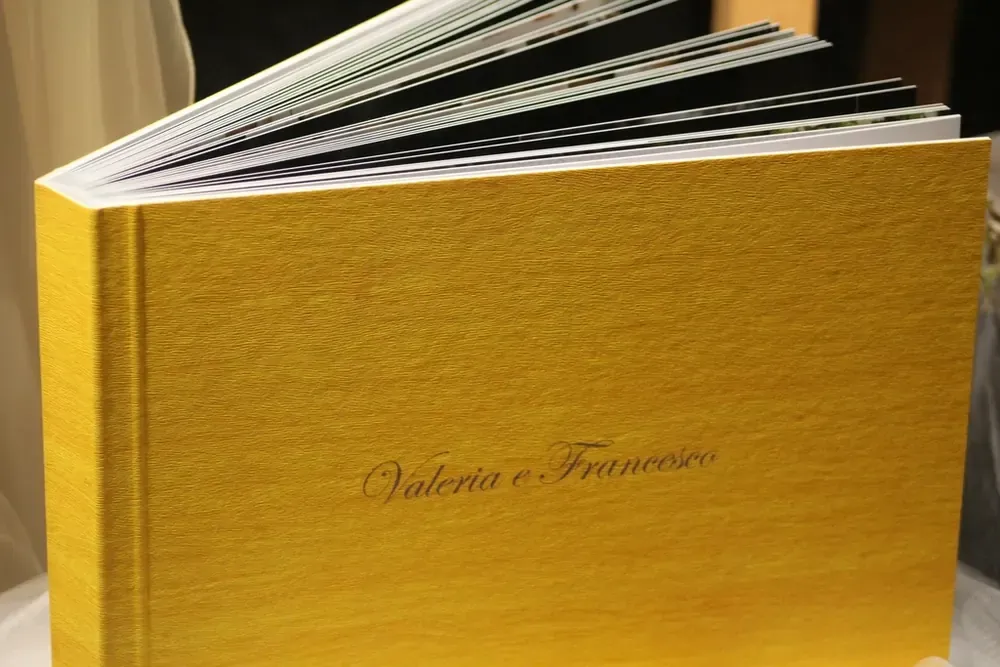 An online album works like a printed one, except everyone can see it from anywhere. Photo: rawpixel (CC0).
In Photo album, add photos: pick many at once or shoot straight from your phone. Photos are resized on your device, so the invitation still loads fast. Use the buttons on each photo to reorder or remove it.
On the invitation, the album shows the first few rows, guests tap See more photos for the rest, and tap any photo to view it full screen and swipe through. Put your best shots first, since many guests only look at the first few.
5. Turn on RSVPs
Knowing your headcount early helps with seating and catering. The invitation has an RSVP form built in: guests enter their name, phone, whether they are coming, party size, which side they are on, which event they will attend, and a message for you.
To collect every reply in one place, go to the Contact tab, open Receive RSVPs via Google Forms and paste your form’s “pre-filled link” (Google explains how to get it in this help article). Each reply then lands as a row in Google Sheets, so counting guests takes seconds.
Rather not use Google Forms? Leave it empty. When a guest taps send, the invitation opens WhatsApp, email or a phone call to you with the reply already written. Choose these in RSVP channels.
6. Add gift details and a QR code
Some guests can’t make it but still want to send a gift. A gift section makes that easy and saves everyone an awkward question.
 The gift section replaces the card someone would otherwise mail for a guest who can’t attend. Photo: The World is a Stage (CC0).
Under Wedding gift (bank accounts), add each account: bank, account number, holder name and a QR code image from your banking or payment app, such as a Zelle or Venmo QR code. On the invitation, guests tap Copy to paste the number into their app, or Save QR code and scan it from their photos.
Guests who answer “Regretfully declines” in the RSVP also see a button that leads to the gift section. Open the section with a gentle line like “Your presence is the best gift”, so nobody feels asked for money. If you have a registry or honeymoon fund, add its link to the gift text.
7. Publish and send the link
Check the preview in Mobile mode, since most guests will open the invitation on a phone. When you’re happy, tap Publish, choose a name (it becomes part of the link) and sign in with a free GitHub account. About one to two minutes later your invitation is online.
Want a short link like annaandjames.com? Buy a domain and choose Your domain when publishing. Have family abroad? Add a second language in the Languages tab, and guests switch versions on the invitation. A last-minute change of time or venue is just an edit and Update website, with nothing to reprint.
How to send an online wedding invitation politely
An online invitation is convenient, but how you send it decides whether guests feel truly invited:
- Message each guest personally, with a line that uses their name, instead of dropping the link in a group chat.
- Send it early. Many couples send invitations six to eight weeks before the wedding, earlier for a destination wedding, so guests can book time off and travel.
- Grandparents and older relatives may still prefer a printed card by mail; add the link so they can see the map and photos.
- Send a reminder a few days before with the same link: guests open it and see the countdown and the Directions button.
Ready to start? Open the online wedding invitation template or browse wedding and event templates, add your names and photos, and send the link today. Everything is free; only your own domain is an optional cost.
Just getting started? Read the guide on how to create a free website for your shop in 5 minutes.
Templates in this article

Frequently asked questions
Is there a limit on how many guests can open a free online wedding invitation?
No. The invitation is a web page, so you can send the same link to as many guests as you like. You only pay if you want your own domain, such as annaandjames.com.
What about older guests who are not comfortable with phones?
Mail or hand a printed invitation to grandparents and anyone who expects a formal card. The online invitation works best for friends, coworkers and guests who live far away.
Where do I see who has RSVPed?
Connect a Google Form and every reply becomes a row in your Google Sheets. Without a form, guests send their reply by WhatsApp, email or phone with the message already written for them.
Can we keep the invitation after the wedding?
Yes. After the day, the countdown changes to a thank-you note, and the page stays online as a home for your wedding album and your friends' wishes.
Related articles

Wedding dress rental website: collection and fittings
A wedding dress rental website lets brides browse by code, see rental prices and deposits, and book a fitting themselves. 7 things it needs, built free.

Karaoke bar website: take room bookings online, clear prices
A karaoke bar website shows your rooms and hourly prices by time band, and lets groups book with a live estimate. 7 things it needs, built free.

Vet clinic website: 7 sections that win pet owners' trust
A vet clinic website needs an emergency number, prices by dog, cat and weight, a vaccine schedule from birth date and online booking. Build it free.