
How to Make a Free QR Code Menu for Your Café in 6 Steps
A step-by-step guide to a free QR code menu for your café. Guests scan to see drinks and prices, and you can change prices without reprinting.
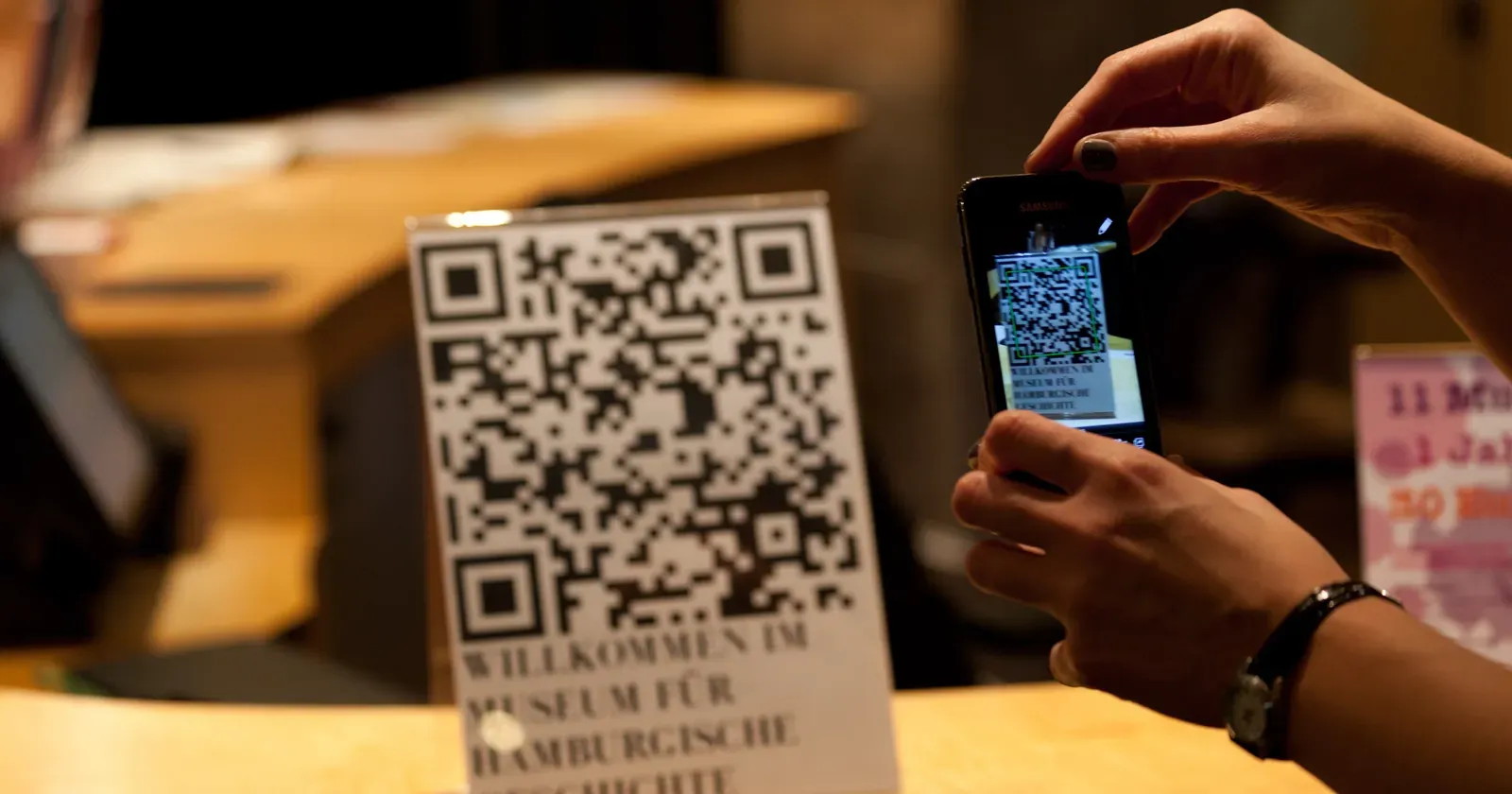
More and more cafés use a QR code menu: guests sit down, scan the code on the table with their phone and instantly see drinks, photos and prices. This guide shows how to make a QR code menu for your café for free, set it up once, and change prices without reprinting the code.
In short, making a QR code menu takes 6 steps:
- Prepare your menu: names, prices, photos
- Put the menu on a web page, not a PDF
- Create a QR code that points to the menu page
- Test-scan before printing
- Print and place the codes in the right spots
- Update the menu without reprinting
Each step is explained below.
1. Prepare your menu: names, prices, photos
Before doing anything online, tidy up your menu:
- Clear categories: coffee, tea, iced drinks, food.
- Easy-to-understand names. If you use a house name, add a short description (for example “Sea Salt Latte — latte with a salted cream top”).
- Prices for each cup size if you offer S, M, L.
- Real photos of best-sellers. You don’t need a photo for everything; 5–10 highlights are enough.
- Useful notes: less sugar, plant-based milk, caffeine-free options for kids.
The tidier the menu, the faster guests order and the less you have to explain.
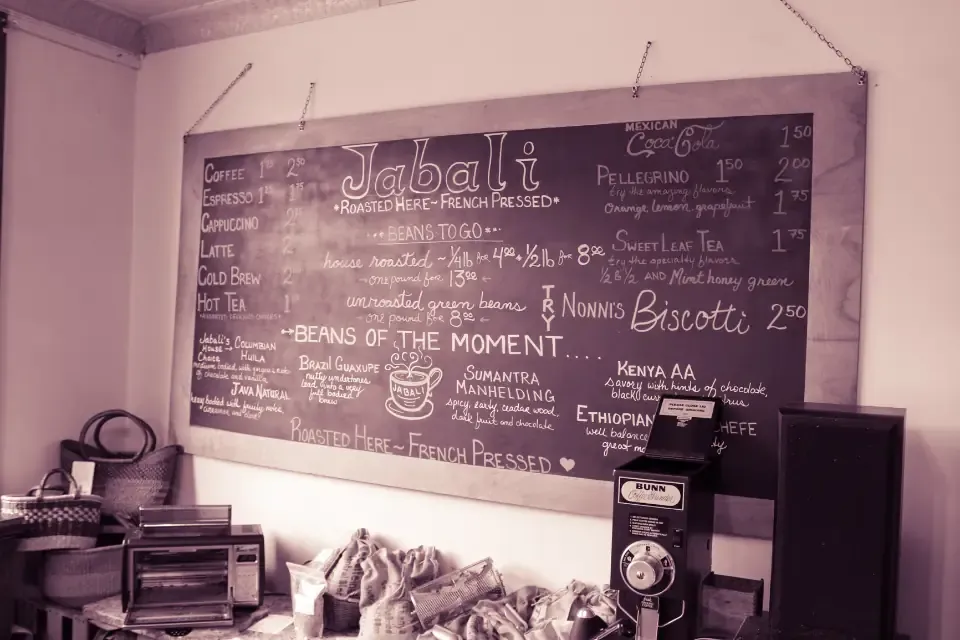 A café’s chalkboard menu: clear groups, one drink per line, prices by cup size. Your QR menu should be just as tidy. Photo: Tim Savage (CC0).
2. Put the menu on a web page, not a PDF
This is where many cafés go wrong. The common approach is to photograph the paper menu or export a PDF and make a QR code that opens that file. It has three problems:
- On a phone, guests must zoom and scroll sideways to read.
- The file is heavy and loads slowly on a weak connection.
- Every price change means a new file, sometimes even a new QR code.
A menu web page (one page on your café’s website) fits any phone screen, loads quickly and can be edited right away. You can also share it on Instagram, Google Maps and messaging apps so people can check the menu before they come.
3. Create a QR code that points to the menu page
Once your menu page has an address (for example yourcafe.github.io/menu), create a QR code for it. Choose a static QR code: it contains the address directly, is free to make and never expires.
Be careful with “free dynamic QR code” services: many offer a trial, then lock the code or add ads when it ends, and every code printed on your tables stops working. Because your menu lives on a page you can edit, you don’t need a dynamic code.
A quick way: open your menu page in Chrome on a computer, find Create QR code in the browser’s share menu, then download the image to print.
4. Test-scan before printing
Before printing in bulk, print one copy and check:
- Scan it with at least two different phones (one Android, one iPhone).
- Scan in the real lighting of your café, including the darkest corner.
- Make the code big enough to scan from the seat without leaning in.
- The code opens the right menu page, quickly, with readable text.
Keep a white margin around the code and use a dark code on a light background. Codes that are too pale or printed on busy patterns are often hard to scan.
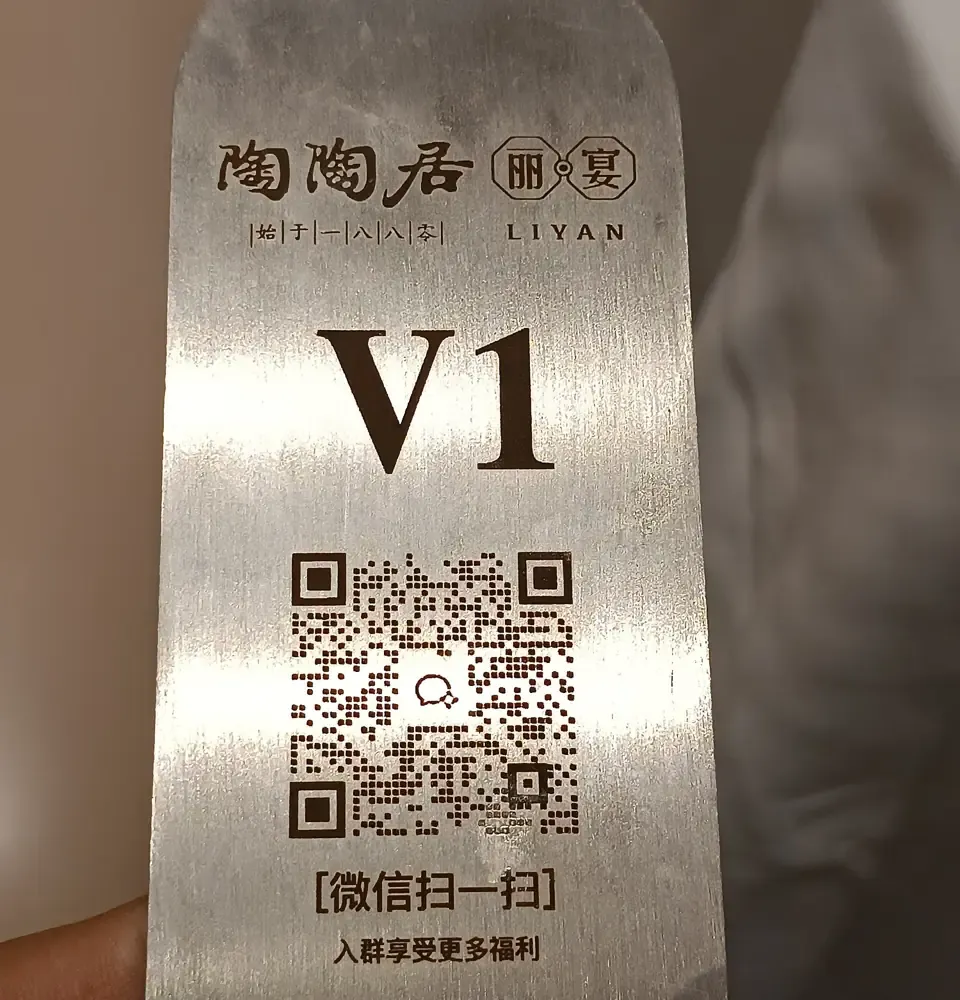 An engraved metal code looks smart but has lower contrast than black on white. These need even more careful testing in real light. Photo: MeiOLA 2290 WMENSZ (CC0).
5. Print and place the codes in the right spots
A QR code only helps when guests see it at the right moment. Good places:
- On every table: a small stand or sticker with “Scan for the menu”.
- At the order counter, for guests waiting in line.
- On the door or window, so passers-by can look first.
- On takeaway cups and bags, so regulars can order again.
Add a short line under the code (for example “Menu & prices — scan with your phone camera”). Many people don’t know their camera can scan codes without an app.
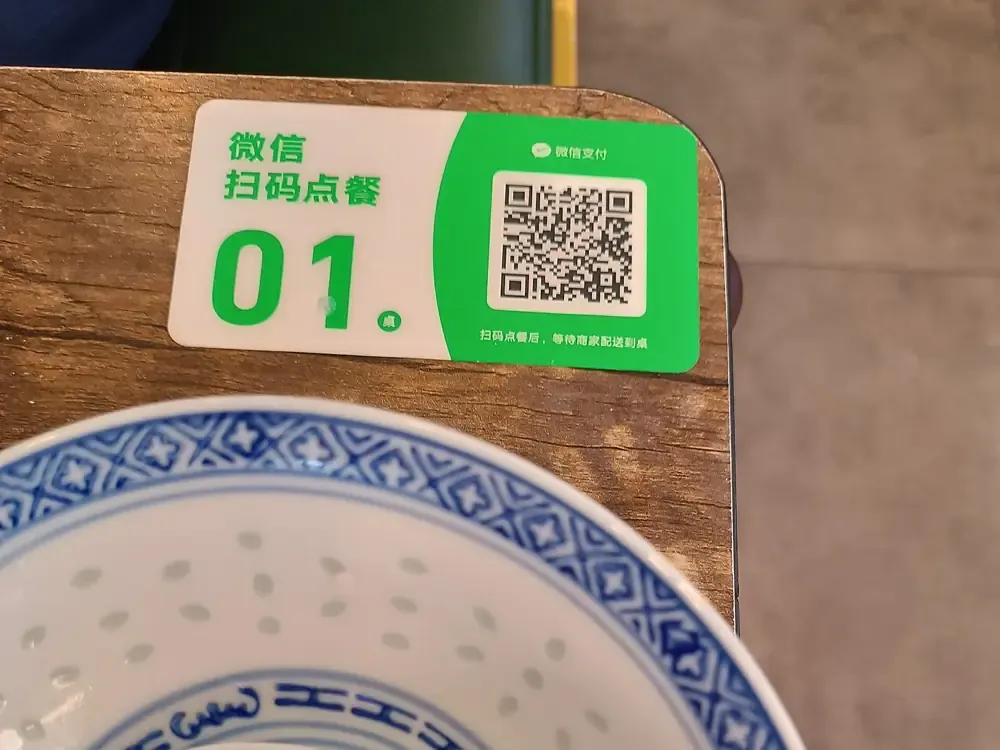 A QR sticker in the table corner with a big table number: guests see it as they sit down, and staff know which table ordered. Photo: LAHN wui Hoezhong (CC0).
6. Update the menu without reprinting
This is the biggest benefit. When you change a price, add a seasonal drink or run out of something, just edit the menu page. The printed code still opens the same address, now showing the new menu.
Good habits:
- Add a small “last updated” date at the bottom of the menu.
- Mark items as “Sold out” instead of deleting them, so regulars aren’t confused.
- After every price change, scan the code on a table to check.
Tips to get more from your QR menu
- Add message and call buttons and your opening hours to the menu page, so guests can pre-order or ask about seats.
- Add the menu link to your café’s free Google Business Profile. People searching “café near me” can see your menu before they arrive.
- If you get many tourists, add a second language to the menu.
- Keep a few printed menus at the counter for guests who prefer paper.
Start from a ready-made café template
You don’t need to design the menu page yourself. The Kingpes café website template already has a menu grouped by category with prices, drink photos, opening hours, a map and message and call buttons. Replace the name, drinks and prices, publish it, then create a QR code for the page address. If you also sell cakes, see the bakery template, or browse the free template library.
Just getting started? Read the guide on how to create a free website for your shop in 5 minutes.
Templates in this article


Bakery
FreeFrequently asked questions
Does a QR code menu cost money?
Not necessarily. You need an online menu page (you can build one from a free website template) and a static QR code that points to it. Static QR codes are free to create and never expire.
Should I use a PDF as my QR menu?
Better not. A PDF has to be zoomed on a phone, loads slowly and must be remade every time prices change. A web page menu is easier to read and can be edited instantly.
Do I need to reprint the QR code when prices change?
No. The QR code only contains the address of your menu page. Edit the page and the same code shows the new menu.
What about guests who don't like scanning codes?
Keep a few printed menus at the counter. A QR menu helps most guests browse faster; it doesn't have to replace paper completely.
Related articles

Wedding dress rental website: collection and fittings
A wedding dress rental website lets brides browse by code, see rental prices and deposits, and book a fitting themselves. 7 things it needs, built free.

Karaoke bar website: take room bookings online, clear prices
A karaoke bar website shows your rooms and hourly prices by time band, and lets groups book with a live estimate. 7 things it needs, built free.
Vet clinic website: 7 sections that win pet owners' trust
A vet clinic website needs an emergency number, prices by dog, cat and weight, a vaccine schedule from birth date and online booking. Build it free.