
Add Your Business to Google Maps: 7 Free Steps
How to add your business to Google Maps for free: create a Google Business Profile, verify it, add hours, photos and your website, and reply to reviews.
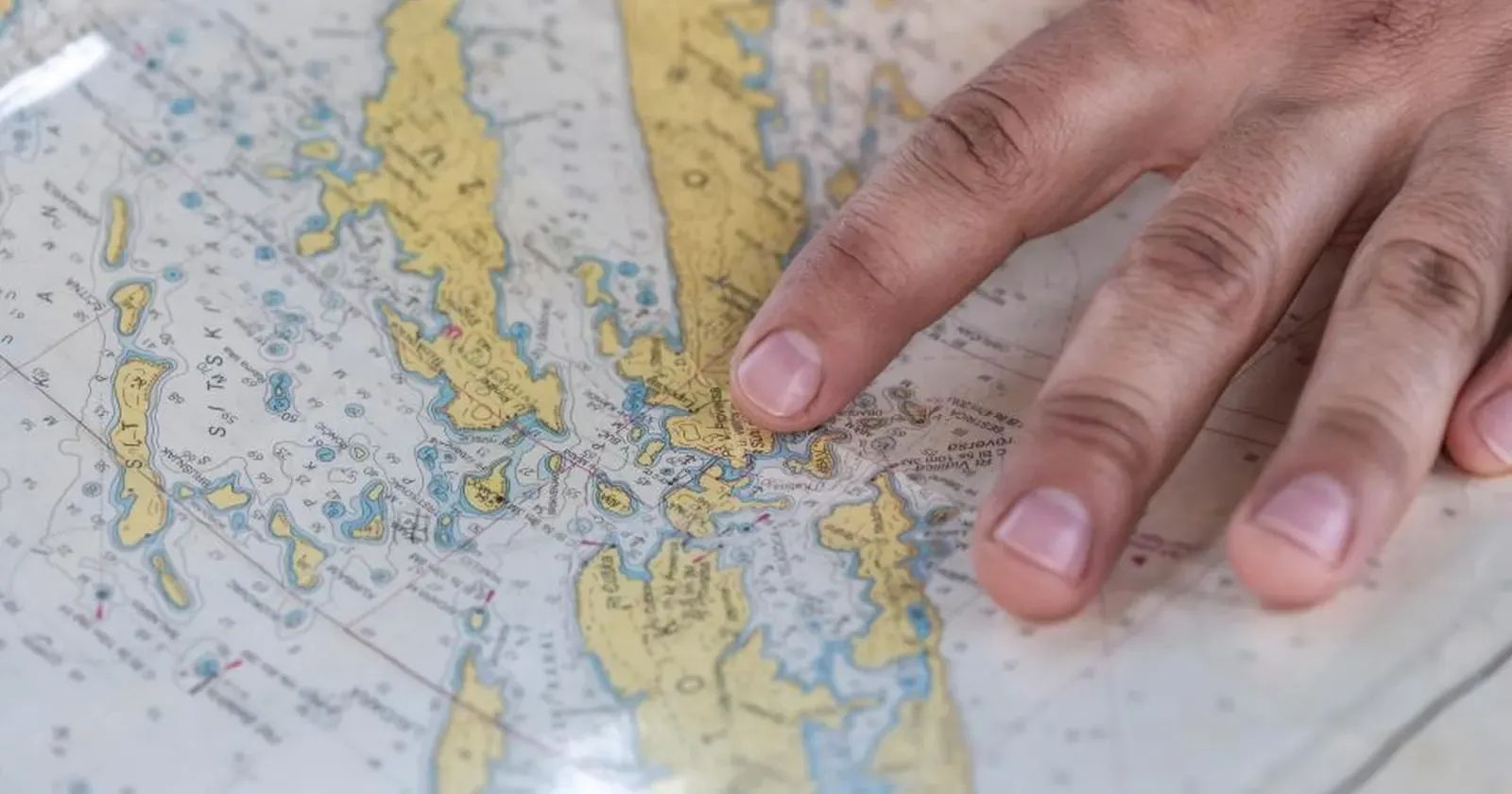
When someone searches “bakery near me” or “nail salon downtown”, Google Maps shows businesses with complete profiles: name, hours, photos, reviews, call and directions buttons. When you add your business to Google Maps, people nearby find you exactly when they need you, for free. This guide walks through 7 steps you can do on your phone.
Quick summary, 7 steps to add your business to Google Maps:
- Check whether your business is already on Google Maps
- Create a Google Business Profile
- Verify your business
- Add hours, phone number and website
- Add real photos
- Post updates and offers
- Get and reply to reviews
1. Check whether your business is already on Google Maps
Many businesses are already on the map, added by customers or passers-by, just without an owner managing them.
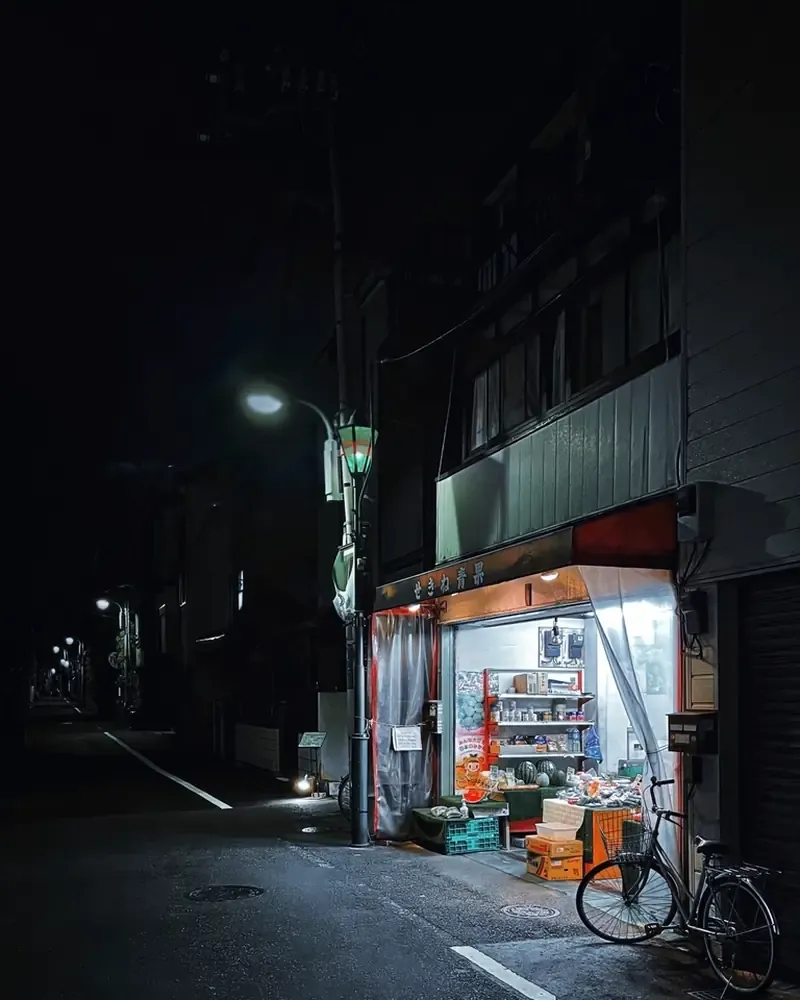 Even a tiny shop on a side street gets found by people nearby once it has a Google Maps profile. Photo: rawpixel (CC0).
- Open Google Maps and search your exact business name with the street or neighborhood.
- If it’s there: open the page, choose the option to claim the business, then continue from step 3.
- If it isn’t: go to step 2 and create it.
- If you see two duplicate pages: report the duplicate so Google merges them and customers don’t see an old page.
2. Create a Google Business Profile
A Google Business Profile is your business page on Google Maps and Google Search. Create it with a Google account, following Google’s guide to adding your business:
- Business name: use the exact name on your sign; don’t stuff keywords like “Best Cheap Bakery”.
- Primary category: pick the closest one, such as “Bakery”, “Nail salon” or “Dentist”. The category affects which searches you show up for.
- Address: enter the full address, then drag the pin to your exact door.
- No storefront: choose a service area (city or neighborhoods) and hide your home address.
Have your phone number and website address ready before you start so you can finish in one go.
3. Verify your business
Google needs to know you really own the business. Depending on your case, Google offers one or more verification methods, for example:
- A call, text or email with a verification code.
- A short video of your business: the sign, the counter, your work area and something showing you’re operating.
- A postcard mailed to your business address with a code.
Use the method Google offers you. While you wait, avoid changing your name or address repeatedly, as that can trigger re-verification.
4. Add hours, phone number and website
These are what customers tap most. Wrong details send people to a closed door and lead to bad reviews.
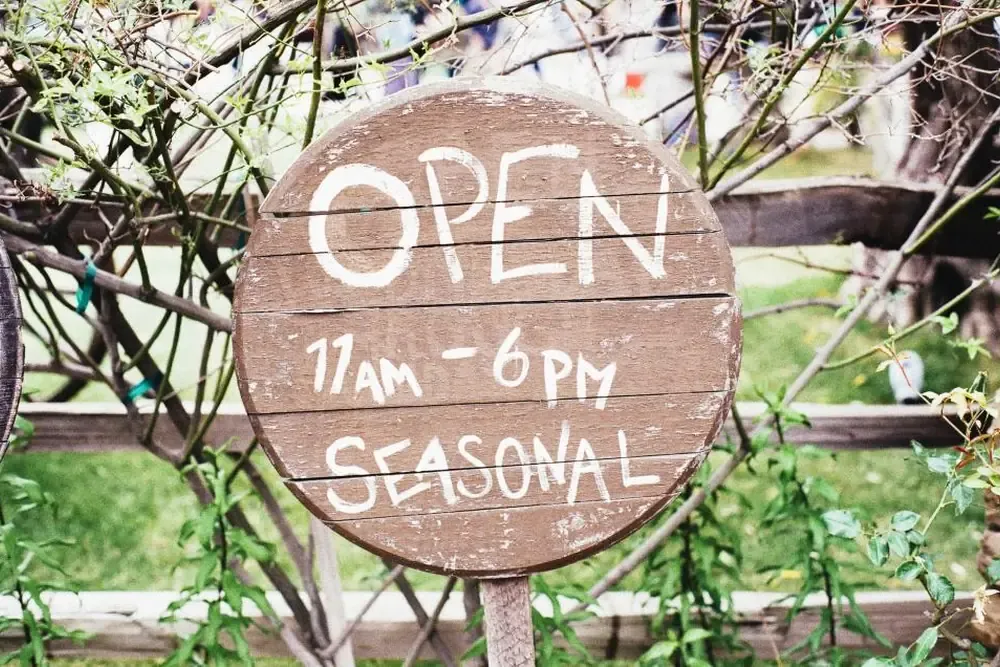 Your hours on Google Maps should match the sign on your door and the hours on your website. Photo: Jay Mantri (CC0).
- Hours for each day, including lunch breaks. Add special hours for holidays.
- A phone number that’s actually answered.
- Your website: customers check your menu or prices and order right away. No website yet? See how to create a free website in about 5 minutes.
- The same details everywhere: name, address and phone identical on Google Maps, your website and social pages.
5. Add real photos
A profile with real photos looks far more trustworthy than an empty one. Customers want to see the place before they come.
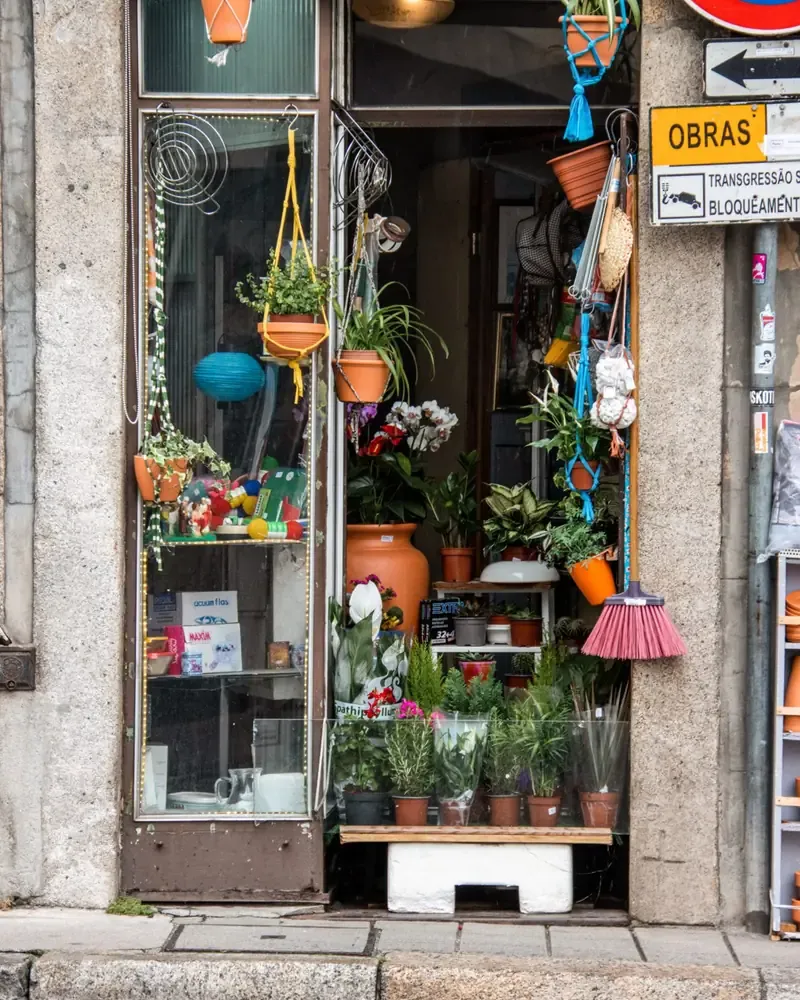 A storefront photo helps customers recognize your shop as soon as they arrive. Photo: mdburnette (CC0).
- Storefront and sign, in daylight, so people recognize you when they arrive.
- Inside: counter, seating, treatment area.
- Products and best sellers in natural light.
- A logo and cover photo for the profile.
Add new photos regularly, especially for new items or a refresh.
6. Post updates and offers
Your profile has a posts feature that shows right on your business page in Google Maps:
- Offers like Black Friday, holiday or Mother’s Day deals, with start and end dates.
- New products or services with a photo.
- Announcements: holiday closures, new hours, a new location.
- A button to your website so customers can see details and order.
Short posts with real photos, published regularly, make the profile look active and reassure customers you’re open.
7. Get and reply to reviews
Reviews are what new customers read most carefully before choosing a business.
- Ask happy regulars for a review, with a QR code to your review page at the counter.
- Reply to every review, positive and negative, politely and briefly.
- Negative reviews: thank them, apologize if fair, and say what you fixed. Don’t argue.
- Never buy fake reviews or give rewards for positive reviews; it breaks Google’s policies and reviews can be removed.
On your website, add a “See our Google reviews” button so customers can check for themselves. Kingpes templates such as the bakery template come with a Google review button, opening hours and a map.
Google Maps and a website work together: Maps helps customers find you, your website helps them look closer and order. You can pick a free website template, add its link to your Google Maps profile and have both today.
Templates in this article


Frequently asked questions
Does it cost anything to put my business on Google Maps?
No. Creating and managing a Google Business Profile is free. You only need a Google account.
Can I appear on Google Maps without a storefront?
Yes, if you serve customers at their location or deliver. When you create the profile, show a service area and hide your home address.
My business is already on Google Maps, added by someone else. What now?
Find your business on Google Maps, open its page and choose the option to claim the business, then follow the verification steps.
How long until my business shows on Google Maps?
After verification, your details usually appear within a short time, sometimes a few days. It depends on the verification method and Google's review of your information.
Related articles

Wedding dress rental website: collection and fittings
A wedding dress rental website lets brides browse by code, see rental prices and deposits, and book a fitting themselves. 7 things it needs, built free.

Karaoke bar website: take room bookings online, clear prices
A karaoke bar website shows your rooms and hourly prices by time band, and lets groups book with a live estimate. 7 things it needs, built free.

Vet clinic website: 7 sections that win pet owners' trust
A vet clinic website needs an emergency number, prices by dog, cat and weight, a vaccine schedule from birth date and online booking. Build it free.