
Manage badminton court bookings in Google Sheets for free
How to manage badminton court bookings in Google Sheets for free: a bookings sheet, a court-by-hour grid, colour for full slots, clash alerts and weekly groups.

A notebook, a chat group and the owner’s memory are the three easiest ways to double-book a court. Two groups turn up at 19:00, a court sits empty because nobody wrote it down, and answering “is Thursday night free?” means scrolling through dozens of messages. This guide shows how to manage badminton court bookings in Google Sheets for free: a bookings sheet, a colour-coded court-by-hour grid, clash alerts and bookings that flow in from your website.
Quick summary, 6 steps to manage court bookings in Google Sheets:
- Create a “Bookings” sheet with standard columns
- Collect website bookings with Google Forms
- Build a court-by-hour grid for each day
- Colour full slots and flag clashes
- Handle weekly groups
- Share with staff and use it on your phone
1. Create a “Bookings” sheet with standard columns
Open Google Sheets, create a new spreadsheet and name the first tab Bookings. Each row is one booking, with these columns:
- Date (as a date), Start time, End time
- Court (Court 1, Court 2…), Customer / group, Phone
- Weekly (number of weeks if it’s a regular group)
- Status: Pending, Confirmed, Cancelled
- Price, Paid, Notes (racket hire, shuttles…)
 Setting up every column from the start makes filtering, counting and totalling much easier later. Photo: rawpixel (CC0).
Keep one format per column, for example times always as 19:00, never “7pm” one day and “19h” the next. A spreadsheet only filters and counts correctly when the data is consistent.
2. Collect website bookings with Google Forms
Instead of copying every message by hand, let players fill it in:
- Create a Google Form with questions for court, date, time, length, name, phone and notes.
- In the Responses tab, click the Google Sheets icon to link the form to your spreadsheet. Each new booking becomes a row automatically.
- Link the form from your venue’s website: players check the prices, pick a time, tap send, and it lands straight in the sheet.
If you don’t have a website yet, some badminton court templates come with a self-pricing booking form where you only paste your Google Forms link; see the end of this guide.
3. Build a court-by-hour grid for each day
A list of bookings is hard to read when you need to answer “which court is free tonight” fast. Add a second tab called Today:
- Column A holds the times, one row per 30 minutes: 05:00, 05:30… to 22:00.
- Row 1 holds the court names: Court 1, Court 2… Court 8.
- A date cell at the top, say B1, lets you view any day.
In each cell of the grid, use a conditional count (COUNTIFS) to check whether the Bookings tab has a booking for the same date and court that starts at or before that time and ends after it. A result above 0 means the court is taken. Write the formula once and drag it across the other cells.
 A court-by-hour grid answers “any court free?” at a glance. Photo: rawpixel (CC0).
4. Colour full slots and flag clashes
Use conditional formatting so the sheet colours itself:
- In the grid, cells above 0 turn light red (taken) and cells at 0 stay white (free).
- In the bookings list, colour yellow the rows marked “Pending” so staff know who to call back.
- Add a Clash column that counts confirmed bookings overlapping on the same court; above 1 turns dark red for immediate attention.
How to add colour rules is explained in Google’s conditional formatting help. It takes about 10 minutes the first time, and the sheet updates itself with every new booking.
5. Handle weekly groups
Regular groups are a badminton venue’s steadiest income.
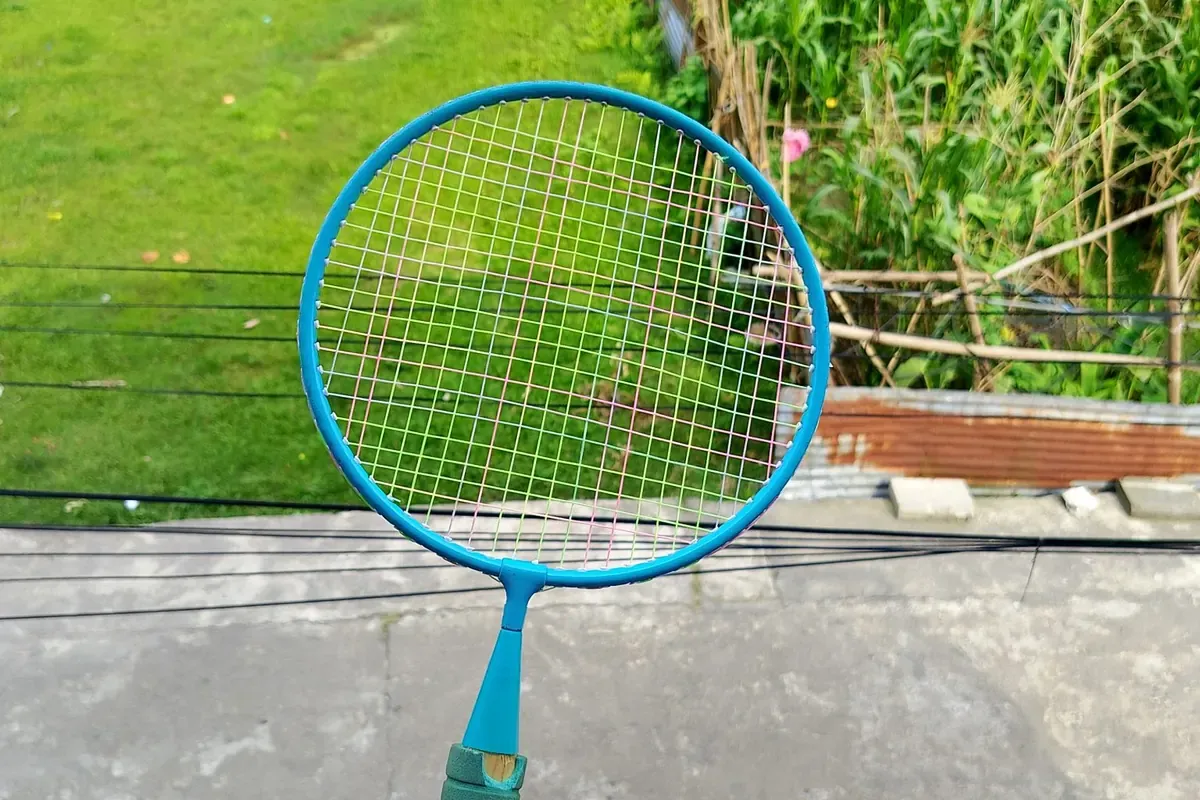 Remind regular groups by message the day before to cut last-minute cancellations. Photo: appealdahal (CC0).
There are two ways to record them:
- One row per session: enter the first session and drag it down for the number of weeks, adding 7 to the date each time. Easy to cancel or move a single session.
- One row with an “Until” column: tidier, but your grid formula must also check the weekday.
For a small venue, the first way is easier for staff. Name groups clearly, for example “Tom’s group – Thu 19:00”, and record deposits in the Paid column so you can reconcile at the end of the month.
6. Share with staff and use it on your phone
Click Share and add your staff’s emails as Editors. With the Google Sheets app on their phones, they open the sheet to see today’s schedule, confirm bookings and record payments at the desk. Every change is kept in Version history, so mistakes can be undone.
As you get busier, you can add a “Revenue” tab that totals takings by day and by court. Only when you run several venues or need online payments is it time to look at paid court software.
A badminton website that sends bookings to Google Sheets
The spreadsheet helps you manage; a website lets players book themselves. See how to create a free website, or use the badminton court template in the free website template library: it has prices by time band, a self-pricing booking form, drop-in sessions and classes, and you only paste your Google Forms link for bookings to flow into the sheet. If you also run a football pitch, see the five-a-side pitch website guide.
Templates in this article

Frequently asked questions
Is Google Sheets free?
Yes. A Google account is all you need for Google Sheets and Google Forms, on computer and phone, with no limit on bookings for a small venue.
Can staff see and edit the schedule at the same time?
Yes. Click Share and add your staff's emails as editors. Everyone sees the same sheet, changes appear instantly and you can look back through the edit history.
When should I move to paid court-booking software?
When you run several venues, want players to pay online and lock the slot at booking time, or need detailed revenue reports. For 4–10 courts, Google Sheets is usually enough.
Can players book themselves and have it land in the sheet?
Yes. Use Google Forms to collect bookings and link it from your venue's website. Players pick the court, date and time on the site, tap send, and the booking becomes a new row in Google Sheets.
Related articles

Wedding dress rental website: collection and fittings
A wedding dress rental website lets brides browse by code, see rental prices and deposits, and book a fitting themselves. 7 things it needs, built free.

Karaoke bar website: take room bookings online, clear prices
A karaoke bar website shows your rooms and hourly prices by time band, and lets groups book with a live estimate. 7 things it needs, built free.

Vet clinic website: 7 sections that win pet owners' trust
A vet clinic website needs an emergency number, prices by dog, cat and weight, a vaccine schedule from birth date and online booking. Build it free.