
QR codes for shops: 6 uses beyond the menu
QR codes for shops do more than show a menu: 6 uses such as your website, Google reviews, WhatsApp, Wi-Fi, payments and reorders, plus tips to print them right.
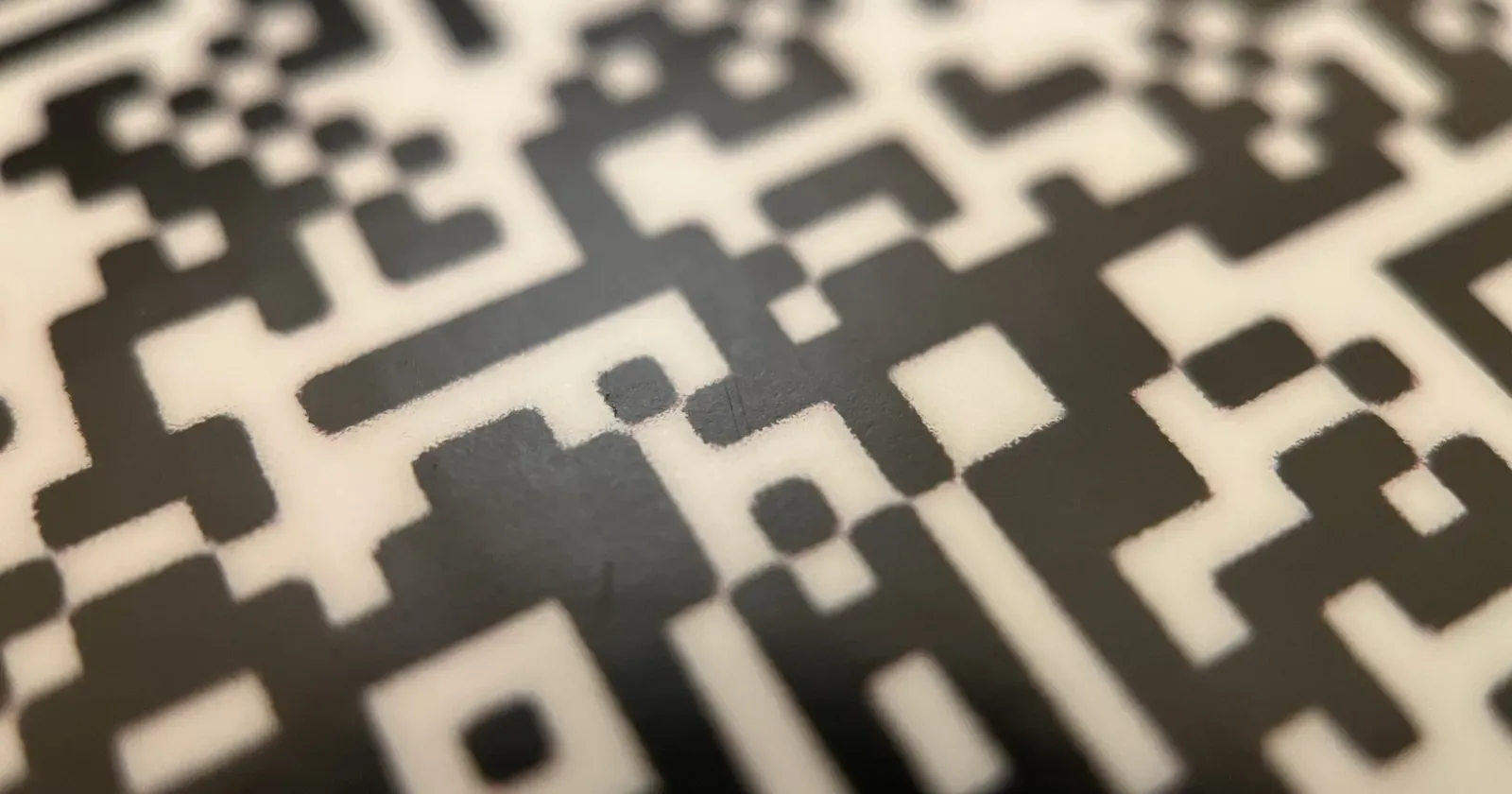
Many shops already use a QR code so customers can see the menu. But QR codes for shops can do much more: help customers save your details, leave a review, follow you, pay quickly and come back to buy again. This post gathers 6 ways to use QR codes beyond the menu, for bakeries, bubble tea shops, florists, clothing stores and spas, plus printing tips so customers can scan on the first try.
Quick summary, 6 ways to use QR codes beyond the menu:
- Open your shop’s website
- Ask for Google reviews
- Add you on WhatsApp or follow your page
- Join the Wi-Fi without reading out a password
- Pay by bank transfer or app
- Reorder from the bag, receipt or packaging
1. Open your shop’s website
This is the most useful QR code. One code leads to your shop’s website, with all your products, prices, opening hours, address and an order button.
- On the shop window: people passing by when you are closed can still scan, browse and order ahead.
- At the counter: customers who are waiting can look at other products.
- On business cards, flyers and stands at markets and fairs.
The QR code should point to your website, not a social media post or an image file. Posts get buried and image files can’t be edited, but you can update your website as often as you like and the old code stays correct. If you only use QR codes for your menu so far, see also how to make a QR code menu for a café.
2. Ask for Google reviews
Google Maps reviews help new customers trust you and help your shop appear when people nearby search. The problem is that happy customers usually forget to write one.
A QR code that goes straight to the review box solves this. Get the link from your Business Profile on Google (“Ask for reviews” or “Share review form”), see Google’s guide, then make a QR code from that link.
- Place the code at the checkout or on tables, with a short line: “Enjoyed your visit? Scan to leave us a review”.
- Don’t offer gifts for 5-star reviews; just ask customers to be honest.
Not on Google Maps yet? See how to add your business to Google Maps.
3. Add you on WhatsApp or follow your page
A customer buys once and leaves, and you have no way to tell them about new products or offers. A QR code to chat on WhatsApp (your business number) or follow your Instagram or Facebook page keeps that connection.
- State the benefit: “Add us on WhatsApp to hear about fresh bakes every morning” or “Follow us to know when new stock arrives”.
- Put it where customers wait: the drinks counter, the gift-wrapping table, the spa waiting area.
4. Join the Wi-Fi without reading out a password
Cafés, bubble tea shops and spas get asked “what’s the Wi-Fi password?” a hundred times a day. A Wi-Fi QR code lets customers scan and connect, no typing needed.
- Many free QR code tools have a “Wi-Fi” option: enter the network name and password and you’re done.
- Use a separate guest network, apart from the one your till uses.
- When you change the password, remember to reprint the Wi-Fi code.
Under the Wi-Fi code, add a small line: “See the menu and order at…” with your website code. Customers who just connected can browse right away.
5. Pay by bank transfer or app
A payment QR code helps customers pay quickly, and you don’t have to read out an account number or worry about typos.
 A payment QR code right at the counter helps customers pay fast at busy times. Photo: StockSnap (CC0).
- Get a payment QR code from your bank or payment app (for example PayPal, Venmo or Cash App, depending on your country), print it and put it at the counter.
- Show the account holder’s name under the code so customers can check before paying.
- Check the money has arrived before handing over the goods; watch out for fake payment screenshots.
- On your website, you can place the payment code on the order page for customers who order ahead.
6. Reorder from the bag, receipt or packaging
Happy customers are the ones most likely to come back. Put a QR code exactly where they will see it after they get home:
 A QR code printed on a shopping bag or sticker goes all the way home with the customer. Photo: rawpixel (CC0).
- Shopping bags, cake boxes, stickers: “Scan to reorder” leads to the product page on your website.
- Receipts and warranty cards: lead to care instructions, the warranty or your returns policy.
- Cards with flowers or gifts: lead to a thank-you page and a discount for next time.
7. Tips for QR codes that scan easily
A badly printed QR code makes customers try again and again, then give up. A few things to check before printing:
- Size: labels read up close from about 2 × 2 cm; window signs much bigger.
- Contrast: a dark code on a light background, a white margin around it, never on top of a busy photo.
- Instructions right below: what scanning will do.
- Test it with several different phones, including in dim light.
- Point to a fixed page on your website, so you can change the content without reprinting.
No website for your QR code to point to yet? See how to create a free website, or pick a design from the free website template library, such as the coffee shop or bubble tea shop template, change the name, photos and prices, then print a QR code that leads to your page.
Templates in this article


Frequently asked questions
Does it cost anything to create a QR code?
A QR code that points to a link can be made for free with many online tools, or right in the Chrome browser (Share, then "Create QR code"). A payment QR code comes from your bank or payment app.
If I change my content, do I have to reprint the QR code?
If the QR code points to your website, you just update the website and the old code keeps working. That is why it is better to point a QR code at a fixed page rather than an image file or a social media post.
How small can a QR code be and still scan?
As a rough guide, print it at about 2 × 2 cm (0.8 inch) or larger for labels read up close, and much larger for window signs read from a distance. Always test it with several phones before printing in bulk.
Should I use one QR code for everything?
Better to give each code one job. The code at the counter is for payment, the one on the bag leads to reordering on your website, the one by the door leads to the review page. When customers know exactly what a code is for, they scan it.
Related articles

Wedding dress rental website: collection and fittings
A wedding dress rental website lets brides browse by code, see rental prices and deposits, and book a fitting themselves. 7 things it needs, built free.

Karaoke bar website: take room bookings online, clear prices
A karaoke bar website shows your rooms and hourly prices by time band, and lets groups book with a live estimate. 7 things it needs, built free.

Vet clinic website: 7 sections that win pet owners' trust
A vet clinic website needs an emergency number, prices by dog, cat and weight, a vaccine schedule from birth date and online booking. Build it free.